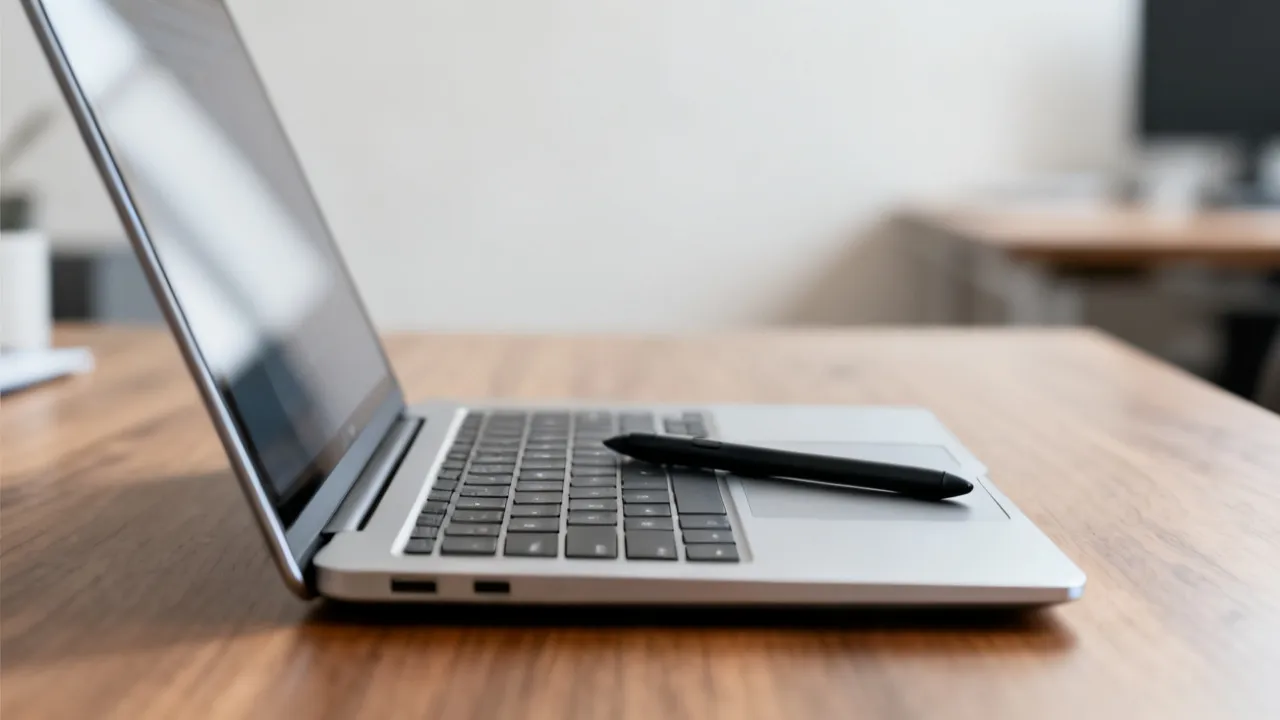
How to Choose Touchscreen Laptops for Work
This guide explains how to evaluate touchscreen laptops for school, work, and everyday productivity, including practical selection criteria and where to find qualifying device and broadband programs. Touchscreen laptops pair direct input with portable computing, changing how users annotate, navigate, and collaborate. The guide then compares major U.S. assistance pathways and clarifies eligibility and application steps.
1) Key takeaway: choose based on use-cases, then verify device and internet support
Touchscreen laptops can boost speed and comfort for note-taking, design and sketching, reading, and everyday navigation, but the “right” model depends on more than simply having a touch-enabled display. Start by matching the laptop to your primary workflow (documents, spreadsheets, creative apps, video calls, and study platforms). Then verify hardware fundamentals—display quality, pen support (if you annotate), battery life under real conditions, weight and durability, storage capacity, RAM, and whether the device is upgradeable or locked down. Finally, if affordability is the main constraint, compare government and partner programs that may reduce the cost of a connected device and broadband service, and confirm the exact device type and connectivity plan included for your specific eligibility path.
In other words: treat touchscreen as an interaction feature that needs the rest of the system to support it. A low-quality panel can make reading and studying exhausting, a device without proper stylus support can turn handwriting into frustration, and an underpowered configuration can turn “touch productivity” into lag and dropped calls. Meanwhile, even the best laptop can feel unusable if the internet plan is too limited or unreliable for your learning, work, and communication needs.
2) Why touchscreen laptops matter (objective context for buyers)
Touchscreen computing has become mainstream in laptops designed for education, mobility, and interactive learning. For many people, a touch-first interface is not a novelty—it’s a practical way to reduce friction. Instead of relying entirely on a trackpad and mouse, users can scroll, tap, drag, highlight, and annotate directly on the screen. This is especially helpful for tasks like reading PDFs, interacting with learning modules, marking up worksheets, or quickly navigating large tables.
From an industry perspective, touchscreen is often treated as an interaction layer rather than a pure performance feature. The difference between a “meh” touchscreen experience and a “wow” touchscreen experience is frequently driven by how well the touchscreen is integrated with the display, digitizer, and software. In practice, the value of a touchscreen laptop depends on the synergy between:
- Display hardware (brightness, resolution, anti-glare coating, viewing angles)
- Input method (finger touch vs. active pen support, digitizer accuracy, palm rejection)
- Thermals and efficiency (sustained performance on battery, fan behavior, throttling patterns)
- Software ecosystem (OS features, app compatibility, stylus apps and markup tools)
- Network needs (for hybrid work, remote learning, cloud tools, video calls, file sync)
- Usability ergonomics (keyboard comfort, hinge design, and whether the device supports your posture)
It’s also worth acknowledging the user reality: many buyers want touchscreen for one “hero task.” For some, it’s annotating PDFs for school. For others, it’s taking handwritten notes in meetings. For others still, it’s reading and browsing in bed or on the couch, where touching the screen feels more natural than using a mouse. The goal is to ensure the laptop is strong enough for your hero task and that it doesn’t break down in secondary tasks you’ll inevitably do—like multitasking with multiple browser tabs, joining video meetings, or downloading attachments for offline work.
3) Expert selection framework: what to evaluate before you buy
3.1 Display: quality and usability trump gimmicks
When evaluating touchscreen laptops, treat the screen as the primary “work surface.” A touchscreen display can feel responsive even when the underlying panel is mediocre. The result can be disappointing during long reading sessions, extended annotation, or frequent spreadsheet work where clarity matters. Look for features that directly influence readability and eye comfort:
- Resolution: Higher resolution generally improves readability for text-heavy documents, charts, and spreadsheets. For many users, a higher pixel density reduces eye strain because text looks sharper at the same scaling.
- Brightness: For bright rooms, daylight, or flexible desk setups, higher brightness helps reduce glare and makes content easier to see. If you often study near windows, brightness becomes more critical than you might expect.
- Anti-glare / matte options: These can make outdoor and near-window use more comfortable by reducing reflections. Glossy screens can look vibrant, but they may hinder readability under strong light.
- Color accuracy (for creative work): If you edit images, design layouts, color-grade video, or do print-oriented work, prioritize better panels and confirm calibration support if available.
- Viewing angles: Good viewing angles ensure the screen remains readable when you tilt the laptop slightly or switch seating positions. Convertible laptops often change angles frequently, so viewing angle matters in real use.
Industry note: Touch panels can feel “responsive” even when the underlying display is mediocre; the resulting experience often disappoints users during long reading or annotation sessions. In many cases, a display with low brightness or poor contrast can make a touchscreen laptop feel worse than a non-touch laptop with a better screen. If you’re purchasing under financial constraints, don’t assume the touch feature compensates for a low-grade panel—it usually doesn’t.
It can help to imagine your typical day. If you’re reading for 2–4 hours (school PDFs, articles, homework sheets), you’ll notice brightness, contrast, and anti-glare immediately. If you’re working with spreadsheets, you’ll notice resolution and scaling. If you’re designing, you’ll notice color accuracy and uniformity. A laptop purchase is ultimately a “daily viewing experience” decision as much as it is a “device” decision.
3.2 Pen and handwriting (if you annotate)
If your workflow includes handwriting, diagramming, marking up PDFs, or sketching, verify that the touchscreen supports an active stylus, not only finger touch. Passive stylus support is sometimes bundled with basic digitizers, but it often lacks features such as accurate palm rejection, low latency, and consistent stroke behavior.
Active pen support frequently delivers better palm rejection and lower latency than basic finger touch alone. That said, pen quality varies by model and ecosystem, and “supports a pen” doesn’t always mean “supports the best pen experience.” Confirm the details:
- Latency: Lower latency improves the “ink follows your pen” feel. High latency can make handwriting look uneven and frustrating.
- Palm rejection: This is critical for natural writing. Without reliable palm rejection, you can constantly trigger unintended clicks or erase marks.
- Pen ecosystem: Check compatibility with the apps you use (note-taking apps, drawing apps, markup tools). Some devices are optimized for built-in handwriting apps, while third-party apps may behave differently.
- Pen buttons and features: Some active pens include programmable buttons for quick actions (eraser mode, right-click behavior, lasso selection). These features can speed up workflow.
- Charging method and availability: Consider whether the pen is rechargeable, uses replaceable batteries, or requires an easy-to-find battery type. A pen you can’t easily power becomes a missed tool.
Also, check whether the digitizer supports pen input at the level you need. For simple note-taking, you may be fine with common stylus support. For design and drawing, you may want higher digitizer resolution and consistent accuracy. If a laptop is sold in an educational program, sometimes the pen is not included. You may be offered a touchscreen device without a pen, or you may need to purchase the pen separately—so it’s important to ask early.
3.3 Performance: avoid underpowered configurations
Touchscreen laptops are often purchased for education, productivity, and everyday tasks that can still become heavy in practice. These workloads include web apps, office suites, note-taking tools, video calls, online classrooms, and cloud-based file sync. A common risk is selecting an underpowered configuration that struggles with multitasking—especially when you add the overhead of a touchscreen display, background updates, and multiple open apps.
As a baseline, evaluate three core components:
- CPU: Prefer modern, power-efficient processors that handle multitasking smoothly. Look for processors designed for productivity, not only for maximum benchmarks.
- RAM: More RAM helps with browser tabs, cloud tools, and simultaneous apps. If you frequently keep many tabs open, join meetings, and work on documents at the same time, RAM becomes critical.
- Storage: Solid-state drives (SSD) provide faster boot and app loading. For offline documents and cached materials, aim for enough capacity. Also consider whether the device uses eMMC or a true SSD, since responsiveness varies.
Because buyers vary widely, the best approach is to match configurations to typical load. Examples:
- Student workload: A few school platforms, video streaming for lectures, office documents, and many browser tabs. RAM and SSD matter more than raw GPU power.
- Remote work: Email, chat, file sharing, multiple documents, and frequent video calls. Sustained performance and stable Wi‑Fi drivers matter a lot.
- Creative tasks: If you use drawing apps, design software, or photo editing, you may need a higher tier CPU and more RAM to avoid lag when working with large files and layers.
Finally, don’t forget software efficiency. Some older systems may feel slow not because they can’t handle the tasks, but because they’re struggling with modern OS updates or heavy startup apps. If you’re buying refurbished, check typical user experiences for that specific model generation.
3.4 Battery life and charging behavior
Touch-enabled hardware can be power-variable depending on brightness and usage. Real-world battery life depends on several factors:
- Screen brightness and display mode: Higher brightness consumes more power. If you frequently use the laptop outside or in bright rooms, battery life may drop significantly.
- Wireless usage (Wi‑Fi vs. cellular modem): Wi‑Fi generally consumes less than cellular, but cellular can still be manageable. If your laptop includes cellular connectivity, verify its actual battery impact.
- Whether you use pen input frequently: Pen input itself may be light, but the overall interaction patterns (screen use time) can affect battery drain.
- Background workloads: Syncing cloud drives, running updates, and maintaining multiple background processes will reduce runtime.
Look for reviews that describe battery behavior under mixed tasks rather than only idle benchmarks. For buyers who might use a laptop in classrooms, libraries, or community centers, the relevant question is often not “how long can it last at idle,” but “how long can it last while I’m browsing, taking notes, and attending a video session.”
Also check charging behavior: some devices charge slowly or require specific chargers. If the charger is proprietary, that’s a practical concern—especially if you travel or study away from home. If you’re buying through an assistance program and the device comes with a charger, confirm that it includes the correct one and that it works reliably.
3.5 Portability and durability
Touch-enabled designs are frequently sold as convertibles and 2‑in‑1 formats. For mobility (commuting, campus, shared workspaces), evaluate:
- Weight: Touch and hinge assemblies can increase weight. If you carry your laptop daily, weight directly impacts comfort.
- Hinge durability: Frequent open/close cycles, folding into tablet mode, and moving the laptop can stress hinges. Choose models known for durable hinges.
- Keyboard travel and key durability: If you type long documents, keyboard comfort matters. A soft keyboard with shallow travel can be fatiguing.
- Build quality: Check whether the chassis feels sturdy. Refurbished units may have cosmetic wear, but structural durability is key.
Durability also includes minor practical issues: does the bezel flex if you press it? Does the hinge wobble? Does the screen wobble in tablet mode? These details are hard to judge from spec sheets, which is why it helps to read user reviews focusing on long-term usage rather than initial impressions.
4) Affordability pathways: device and connectivity programs (comparative overview)
If you are seeking financial support for a laptop and internet service, the most effective strategy is to compare programs using two variables: device subsidy and broadband subscription. Many assistance pathways coordinate eligibility rules, application processes, and sometimes co-pays or shipping fees. Even when multiple programs share similar goals, they may differ significantly in how they deliver service and what “counts” as the eligible device type.
Because the exact inventory of devices (including touchscreen availability) can vary by location and batch, it’s important to verify the device type you’re likely to receive. In some cases, programs may distribute tablets instead of laptops, or they may provide a laptop without a pen even if it’s a touchscreen-capable model. Your best outcome comes from asking program staff or checking the program’s FAQs and eligibility pages for details.
4.1 Comparison table (services, device support, and possible fees)
| Provider / Program | Device and internet support (summary) |
|---|---|
| PCs for People | Refurbished laptops/desktops plus low-cost unlimited internet options for eligible participants; shipping fees may apply depending on current program rules. |
| Human-I-T | Low-cost laptops/desktops and discounted internet depending on location; small co-pay may apply for devices or upgrades depending on availability. |
| T-Mobile (via Affordable Connectivity Program pathway) | Connected devices and discounted plans for eligible users; device discount is limited to qualifying hardware, and plan-dependent fees or requirements may apply. |
| Comcast (Internet Essentials) | Affordable broadband with subsidized refurbished laptops for qualifying households; basic plan fees are typically straightforward with no major extras on basic plans, but fees and device terms can vary. |
| EveryoneOn | Connector service that helps locate partner offers for discounted or fully subsidized laptops and internet in underserved areas; offers vary by partner and location. |
| AT&T (Access by AT&T) | Eligible households may receive reduced-cost internet and device-related discounts depending on partner availability; additional feature fees may apply for certain services. |
source: https://www.pcsforpeople.org
source: https://www.human-i-t.org
source: https://www.t-mobile.com/isp/affordable-connectivity-program
source: https://www.internetessentials.com
source: https://www.everyoneon.org
source: https://www.att.com/internet/access/
Source note: The URLs listed above are provided to direct readers to the official pages where program requirements and current pricing details are maintained. Because program rules can evolve, always verify eligibility steps and any fee schedules on the official sites.
4.2 Government laptop programs: official websites and what they typically cover
In the U.S., “government laptop” assistance is commonly delivered through a mix of federal connectivity support frameworks and partner organizations that distribute refurbished or discounted devices. While availability changes over time, the official program pages are the best place to verify current eligibility rules, plan availability, device inventory ranges, and any shipping or participation fees.
It can be useful to understand the typical structure of these programs:
- Affordable Connectivity Program (ACP) pathways are administered through partner providers (telecom companies and nonprofits) rather than a single national “device store.” This means device bundles and plan bundles can vary.
- Nonprofit refurbishing and distribution (for example, PCs-for-people and Human-I-T) often focus on device supply plus potential connectivity support. Some households may need to apply separately for broadband depending on local partnerships.
- Internet Essentials and similar offerings provide structured discounted broadband options. In certain qualifying cases, laptops can be bundled or provided through partners.
- EveryoneOn acts as an aggregator/connector to help households find locally available offers. This can be helpful when you don’t know which telecom provider or nonprofit partner serves your area.
When you read these program pages, look for sections titled things like “eligibility,” “apply,” “how it works,” “fees,” and “supported devices.” Also check for “device condition” descriptions if refurbished units are distributed. Some programs offer a brief return or exchange window, while others may provide repair support under warranty. The fine print affects your long-term experience.
4.3 How to apply and qualify (step-by-step guidance)
Because eligibility criteria and offer availability can vary by provider and location, the safest method is to follow the official application flows and prepare the required documentation in advance. If your goal is a touchscreen laptop specifically, try to find out during application whether touchscreen support is guaranteed or whether it depends on inventory.
Step-by-step application process (general)
- Confirm eligibility using the provider’s official criteria. This may be tied to household income, participation in certain assistance programs, or other defined qualifiers.
- Choose the pathway that matches your needs: device + internet bundled, internet-first with device optional, or device-focused nonprofit distribution.
- Gather documentation commonly requested for eligibility verification (often proof of participation in qualifying programs or household income evidence, depending on provider requirements).
- Submit an application through the official website listed above or via authorized partners. Avoid unofficial sites; assistance programs can be targeted by scams.
- Review offer details including refurbished device condition notes, plan term constraints, and any shipping, activation, or co-pay requirements.
- Complete enrollment for broadband service (if included) and confirm installation/activation timelines. Ask about technician scheduling windows if installation is required.
- Follow up if inventory is limited: some programs may distribute devices after approval, and availability can depend on regional stock and device categories.
Common qualifications to check
- Household eligibility tied to federal and state assistance participation
- Income-based eligibility thresholds (varies by program and sometimes by household size)
- Location availability for broadband and device distribution
- Provider-specific restrictions on eligible device types or connected plan options
To increase your chances of a smooth experience, consider preparing a small “application packet” at home: identification documents if required, proof-of-assistance documentation, and a list of household members or household size details if the form requires it. This reduces delays if the program asks for follow-up verification.
5) Practical guidance: choosing touchscreen laptops within subsidized device programs
When devices arrive through assistance programs, inventory may include a mix of laptop models and configurations, often refurbished. To protect your investment and experience, evaluate the device you receive through a checklist similar to retail. This is especially important for touchscreen laptops because touchscreen quality can vary by model generation and by the condition of the display and digitizer.
Even if you apply for a touchscreen, what you receive may depend on available units. Therefore, your best strategy is twofold: (1) ask for clarity about touchscreen and pen support before acceptance when possible, and (2) perform immediate checks after device arrival to catch defects early.
5.1 Ask (or verify) these requirements when offered a touchscreen device
- Touch capability: Confirm whether it is true touchscreen (digitizer) rather than a touchpad-only device or a misidentified model.
- Stylus support: Does the package include a pen, and is it compatible with the exact model? If no pen is included, can you get one through the program or purchase it from the manufacturer?
- Screen resolution and brightness: Can you comfortably read documents, especially when doing extended homework or office tasks? Ask for minimum panel specs if available, or evaluate quickly upon receipt.
- Warranty or service policy for refurbished units: Confirm the length of coverage and what types of repairs are included.
- Battery health expectations: Refurbished batteries may be new or may be refurbished depending on program policies. If there’s an allowed battery life rating, review it.
- Storage and RAM suitable for your everyday workload: Confirm whether the device has an SSD and sufficient RAM for your typical browser and office usage.
- Upgradeability: Some refurbished models allow RAM or storage upgrades; others have soldered components. This matters if you plan to keep the device for several years.
Additionally, verify connectivity components: confirm Wi‑Fi performance, whether the Bluetooth module is present and functioning, and whether the camera and microphone work well for video calls. Touchscreens attract buyers for annotation and navigation, but modern productivity often depends on stable video conferencing and reliable wireless connectivity.
5.2 Set realistic expectations about pricing and fees
Many assistance pathways reduce upfront cost substantially, but they differ on operational fees such as shipping, small co-pays, or plan-related charges. The objective strategy is to treat “total cost” as:
device cost (if any) + shipping + required plan fees + potential activation charges
Provider pages should be used to confirm the current fee schedule. When possible, request written confirmation of any device co-pay or shipping fees before final acceptance. If your device program requires proof of delivery or signature, understand when delivery will occur so that you can receive it and test the device promptly.
If a program offers an option between multiple device categories (for example, a lower-cost laptop vs. a slightly more expensive one), compare not only price but also display quality, pen support, and performance. The extra cost (if any) might deliver a better long-term experience even when the initial subsidy is similar.
6) Choosing the right touchscreen laptop model type
6.1 Traditional clamshell vs. 2-in-1 convertible
Touchscreen laptops come in two major form factors:
- Clamshell: Typically best for keyboard-focused work, with occasional touch use. These are usually more stable during typing and may feel more “laptop-like” for daily productivity.
- 2-in-1 convertible: Often best for pen annotation, tablet-like note-taking, interactive learning, and drawing. These devices flip or detach and allow you to use them like a tablet.
From an expert buying stance, the key question is how often you will use touch in place of the keyboard and trackpad. If you mainly type and browse, a clamshell may be more ergonomic for long sessions. If you frequently annotate, write by hand, or teach using a stylus, a convertible with pen support can be more productive.
But the form factor also influences durability and posture:
- Converts can be heavier in some models due to hinges and digitizers.
- Clamshell devices may have less “tablet” flexibility but can be easier to repair or maintain.
- 2‑in‑1 devices can reduce desk-space friction if you use them like a tablet for reading and interactive tasks.
If you’re unsure, consider your likely future usage. Many students and remote workers start with keyboard-first usage and later discover they want more annotation. Choosing a convertible can future-proof some workflows, but it’s only worth it if the pen experience is good and the device feels stable when you type.
6.2 For students: focus on readability and handwriting workflow
Students often use laptops for a mix of reading, writing, video lectures, research browsing, and submitting assignments. For touchscreen laptops in student contexts, prioritize:
- Reduced glare options (anti-glare or matte screens) for comfortable study in variable lighting.
- Pen compatibility if you take handwritten notes. Verify active stylus support and palm rejection.
- Enough storage for school platforms, offline assignments, downloaded readings, and cached media. Some school systems download course materials for offline access.
- Stable Wi‑Fi and camera/mic quality for remote classes.
It also helps to consider the subject area. A student in a science program may need to annotate diagrams and formulas. A student in a humanities program may annotate reading PDFs and highlight sections. In both cases, the touchscreen experience matters, but the “hero task” differs. For diagram-heavy courses, pen accuracy and low latency matter more. For heavy reading, resolution, brightness, and anti-glare matter more.
Another student-specific factor is note organization. Some note-taking apps store notes in the cloud. If internet reliability is inconsistent, you may need offline capabilities. Therefore, check the operating system and the note-taking app features for offline workflows.
6.3 For remote work: prioritize multitasking and video-call stability
Remote workers often require stable performance across meetings, documents, email, chat tools, and file synchronization. A touchscreen laptop can be convenient for scanning documents, annotating contracts, and navigating dashboards quickly. For remote work, prioritize:
- Balanced CPU and adequate RAM to handle meeting load plus documents and browser tabs.
- Good Wi‑Fi and reliable drivers. If reviews mention Wi‑Fi drops or Bluetooth instability, treat those as major red flags.
- Comfortable typing posture even when using touch features. If you type long reports and only occasionally touch the screen, keyboard ergonomics becomes a deciding factor.
- Camera and microphone quality for video calls. Touchscreen model type doesn’t guarantee good audio.
Also consider security and compliance. Many remote roles require device security features—disk encryption, secure boot, and sometimes managed device policies. Check that your device’s OS version is supported and that it can run required corporate software. Even if the device supports touch, a device that cannot run required productivity apps is the wrong choice.
Finally, for hybrid workers, screen size matters. If you do presentations or read multi-pane dashboards, a larger screen can be helpful, but it might reduce portability. Find the balance based on how often you travel.
6.4 For creators and design tasks: touchscreen is only one part
Creators often require higher-quality displays and reliable pen input. Touchscreen laptops can help with sketching, annotating storyboards, and editing visual references. However, sustained creative work depends on the full hardware profile and the software compatibility.
To evaluate creator-friendly touchscreen laptops, consider:
- Display quality: brightness, color coverage, and color accuracy. If your work is color-sensitive (graphics, photography), prioritize better panels.
- Pen responsiveness: low latency, accurate digitizer behavior, palm rejection, and pressure sensitivity if your workflow depends on it.
- Performance headroom: adequate CPU and enough RAM for design tools, layer-heavy files, and multitasking with reference windows.
- Thermals: some laptops throttle under sustained creative workloads. If you plan to render, export, or work for long sessions, sustained performance matters.
Touchscreens also change how creators work. Drawing on a touchscreen can feel more direct than using a mouse, but some artists prefer specialized drawing tablets. The laptop choice should support your exact creative routine. If you’re doing casual annotation or light sketching, a typical touchscreen convertible may be enough. If you’re doing professional design, you may need higher specs and better display calibration.
7) Procurement top practices: avoid common pitfalls
- Don’t equate touchscreen with performance: evaluate CPU/RAM/storage for your actual tasks. A touchscreen display doesn’t guarantee smooth multitasking.
- Verify pen support: passive stylus support may not deliver the responsiveness needed for natural handwriting. Confirm active pen capability if handwriting is critical.
- Inspect refurbished conditions when offered used units—ask about warranty coverage, return policies, and the maximum time window to report issues.
- Consider keyboard comfort even if you plan to touch often; daily typing determines long-term satisfaction.
- Validate internet requirements: cloud workflows can fail without consistent bandwidth. Align your device plan with your connectivity needs and the reliability of your local broadband providers.
- Confirm software and OS version: check that the device can run the tools required by your school or employer. Some older refurbished models may not support newer productivity requirements.
- Test ports and peripherals: ensure USB ports, HDMI (if needed), headphone jacks, and card readers function. Many school and office tasks depend on external devices.
These practices help you avoid a common scenario: you receive a device that is technically touchscreen but is uncomfortable for reading, lacks pen hardware support, or becomes sluggish quickly. In a subsidized program context, you might have limited ability to swap devices later, so early validation can be crucial.
Another pitfall is assuming a touchscreen laptop will work flawlessly outdoors. Even matte screens can struggle in strong sunlight if brightness is insufficient. Plan for real usage: if you study near windows or outside, confirm brightness and anti-glare properties on the model you’re offered.
8) Related considerations: internet service and touchscreen productivity
Touchscreen laptops are frequently used with cloud tools: online classrooms, collaborative spreadsheets, design review portals, and virtual meeting platforms. Therefore, selecting connectivity matters as much as selecting the device.
When assistance programs pair reduced-cost broadband with device support, the goal is to remove two bottlenecks at once: the cost of the device and the cost of internet access. For practical productivity, prioritize:
- Unlimited access terms (where offered) to reduce concerns about daily usage caps, especially for streaming lectures or large file uploads.
- Installation timelines and equipment requirements (modem/router compatibility, activation windows, technician scheduling).
- Reliability for video calls during peak hours. A plan may be “fast enough” in theory but unreliable at certain times.
- Local availability since service areas differ between providers. A program may exist nationally, but the actual service may be limited to specific regions and infrastructure coverage.
Also consider your environment. In some homes, Wi‑Fi signal strength may be poor in certain rooms. Even with the right internet plan, you may experience slow speeds due to router placement, walls, interference, or the presence of many connected devices. If possible, optimize your Wi‑Fi placement and ask your provider about supported router features.
For touchscreen productivity, internet reliability can influence how you perceive the device. When video calls lag, it can feel like the laptop is slow—even if it’s actually the connection. Similarly, if cloud apps take time to load, the device can appear underpowered. So connectivity troubleshooting is a key part of the “device experience” story.
9) FAQs
Q1: Are touchscreen laptops worth it for everyday tasks?
Often, yes—especially for note-taking, reading with direct navigation, and interactive learning. A touchscreen can reduce the steps required for certain workflows, making the laptop feel more intuitive. However, if your primary workload is typing-heavy document creation and you rarely annotate, a touchscreen can be a convenience rather than a necessity. The best choice depends on how frequently you use touch as an alternative to the keyboard and trackpad.
Q2: What should I prioritize if I need handwriting with a touchscreen laptop?
Prioritize active stylus support, low-latency pen response, and strong palm rejection. Also confirm the touchscreen digitizer works reliably with your note-taking or markup app. Even with a good pen, handwriting can feel bad if palm rejection is weak or if the touchscreen digitizer accuracy is inconsistent.
Q3: Will government or program-supported devices definitely be touchscreen models?
No universal guarantee exists across all providers and inventory batches. Assistance programs may distribute a variety of laptop types depending on stock, availability, and the specific offer. When applying, verify the device category offered in your specific request and confirm touchscreen capability and any pen support included.
Q4: What documentation is typically needed to apply for laptop and internet assistance?
Requirements vary by provider and eligibility category. In many cases, applicants must document household qualification—often through participation in certain assistance programs or through income criteria where required. The official program page for your chosen provider is the most reliable source for current documentation requirements.
Q5: How do I know whether fees or co-pays apply?
Review the provider’s official terms for shipping fees, device co-pays (if any), and plan-dependent charges. Assistance programs can differ significantly even when they share similar overarching goals. If the page is unclear, contact the provider using official contact channels and ask for a breakdown of total costs.
Q6: Can I apply to multiple programs?
In many situations, you can explore multiple options to find the best match for your needs. Still, policies differ. Check the official rules for each provider and ensure you understand how overlapping applications or enrollments may be handled. Some programs may restrict simultaneous enrollments or require that you complete one path before another.
Q7: If I receive a refurbished laptop, how can I quickly check for touchscreen issues?
After you receive the device (and within the allowed return or report window), test basic touch behavior: swipe across multiple areas, tap icons, and check for dead zones. If it’s a pen-capable model, test handwriting or a simple drawing app with the stylus. Also check if the touch response is uniform across the entire screen and whether palm contact triggers unintended actions.
Q8: What’s the best way to ensure my touchscreen laptop is good for remote learning?
Look for a combination of readable screen quality (resolution and anti-glare), stable Wi‑Fi performance, adequate RAM for running browser-based learning platforms, and a webcam/mic that works reliably. If you take notes during lectures, prioritize pen support and handwriting reliability. Finally, consider offline capability for storing materials locally when connectivity is inconsistent.
10) Conclusion: match touchscreen needs to hardware realities, then use official pathways for affordability
Touchscreen laptops can improve interaction and productivity, but buyers should focus on display usability, pen support (when relevant), performance stability, and comfort. Don’t rely on the touchscreen alone as a deciding feature; evaluate whether the CPU, RAM, storage, and display quality match your daily tasks. If budget constraints are significant, device and connectivity assistance programs can reduce costs—especially when you apply through official channels and verify the exact device type offered. Use provider websites to confirm current availability, qualifications, and any fees tied to shipping or service enrollment.
When you do this thoughtfully, you’re far more likely to end up with a device you can truly use—one that supports reading and note-taking, handles multitasking smoothly, connects reliably for remote learning or work, and provides a touchscreen experience that feels accurate rather than gimmicky.
Disclaimer
1) The above information comes from online resources, and the data is as of October 2023.
2) This website cannot guarantee that applicants will definitely receive a affordable laptop. For specific application requirements and how to obtain it, please refer to the official requirements of the provider. This website will not be updated in real time.